Raspberry Pi – an idiots guide to installing Raspbian on a Mac

So, once again I need to admit my ignorance…

A few weeks ago, my friend borrowed my SD card ‘to take an image’ and somehow corrupted it – I don’t know how and neither does he, but he did managed to back up all my files. So, I’ve not used my home Pi for a while because when I tried to follow the instructions to reinstall Raspbian, I got very confused and had a few failure methods on the way so I figured it was time I wrote a real, back to basics, idiots guide to installing Raspbian (by idiots, I mean me by the way).

So to start off, there are various different operating systems you can install on a Raspberry Pi – the most basic one is Noobs, which is the recommended OS for the Pi, however, I’d recommend going straight for Raspbian since it’s unlikely, as a beginner, that you’d want to use linux etc.

Download Raspbian from the Rapberry Pi website here. There are some instructions on this page for installing Raspbian, but I got in a bit of a muddle so let’s go even simpler. I’m a user of torrents so I used this method to download, but as long as you know where the file has gone, you’ll be fine (hopefully it has gone to your Downloads folder).

I’m currently using OSX Yosemite (10.10.3) so here’s how I managed to install Raspbian:

Firstly, I plugged my SD card into the reader on my MBA – You need to find the identity of the disk and you can do that through disk utility or through ‘about this mac’ – here’s a picture guide to this method:

Screen Shot 2015-05-29 at 10.41.23First, click on ‘about this mac’, then ‘system report’:

Screen Shot 2015-05-29 at 10.41.48Finally, select ‘card reader’ to get information about the disk – you will see that mine says “BSD name: disk3” so, very simply, my SD card is disk3.

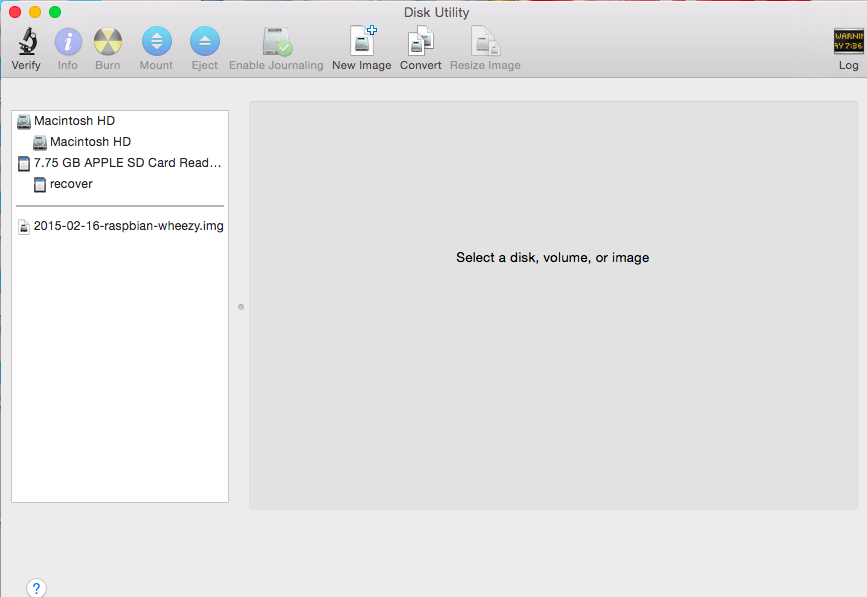
Screen Shot 2015-05-29 at 10.42.08The next step is to open disk utility which can be found in utilites (accessed by typing in shift +⌘ + u):

Screen Shot 2015-05-29 at 11.02.31

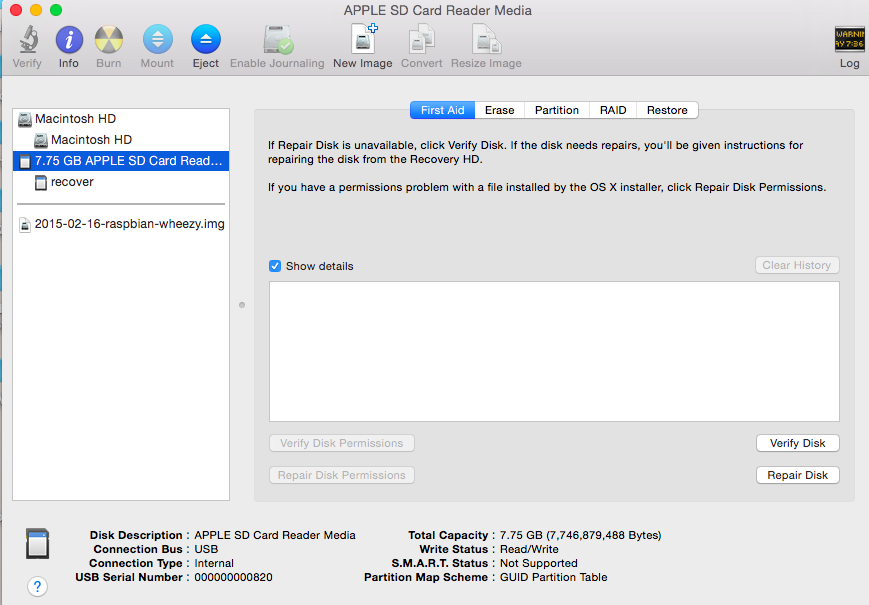
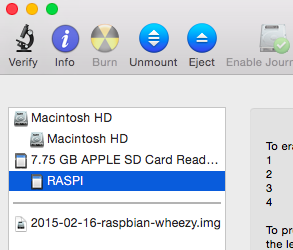
Select your SD card – and choose the ‘Erase’ tab – *Warning* *Warning* *Warning* make sure you have selected the right disk to erase – double and triple check that you have your SD card.

Screen Shot 2015-05-29 at 11.03.17

Screen Shot 2015-05-29 at 11.12.17

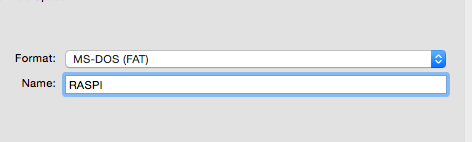
Make sure you select Format: MS-DOS (FAT)

Screen Shot 2015-05-29 at 11.03.29

Screen Shot 2015-05-29 at 11.03.43

Screen Shot 2015-05-29 at 11.03.50

Finally, select your SD card and unmount it (not eject!):

Screen Shot 2015-05-29 at 11.04.16

Screen Shot 2015-05-29 at 11.04.23

You’re now ready for a bit of terminal!

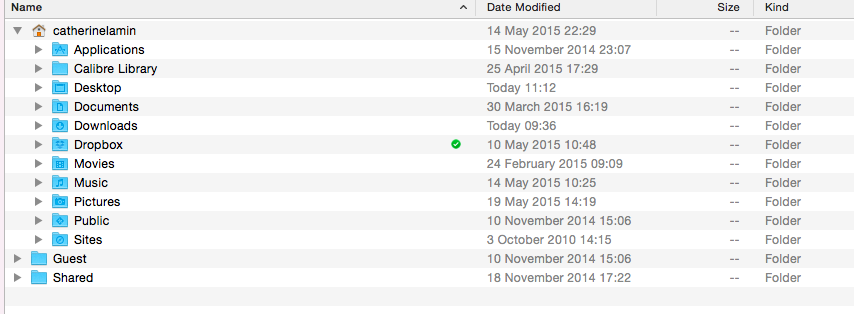
When I opened up terminal (in utilities again), I was instantly placed into ‘my’ folder meaning the home directory for my user account (myname) – shown in this picture with a little house symbol.

Screen Shot 2015-05-29 at 11.19.53So terminal has automatically opened the ‘myname’ home directory.

Screen Shot 2015-05-29 at 11.21.31This is where I hit on a real problem – the Raspberry Pi site suggests typing this into terminal:

  • From the terminal run:
    sudo dd bs=1m if=path_of_your_image.img of=/dev/diskn

    Remember to replace n with the number that you noted before!

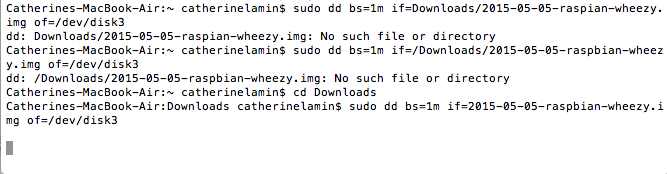
But, I didn’t know the path of my image! I knew it was in my Downloads folder, but I wasn’t sure how to access it – after an awful lot of trial and error I figured it out!

I was already at the home directory, so I needed to drop into downloads by typing cd Downloads into terminal then I could easily run the code – you’ll notice I changed the ‘diskn’ at the end to ‘disk3’ based on the BSD name I found right at the beginning.

Screen Shot 2015-05-29 at 09.44.04So, my final code looked like this:

Catherines-MacBook-Air:~ catherinelamin$ cd Downloads
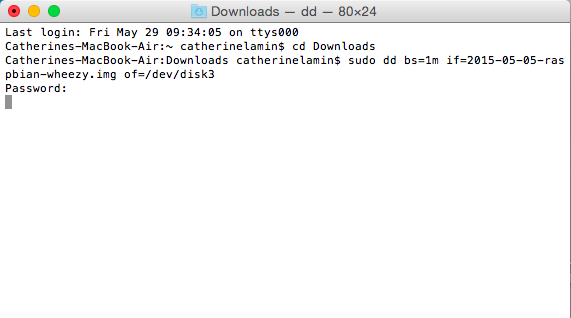
Catherines-MacBook-Air:Downloads catherinelamin$ sudo dd bs=1m if=2015-05-05-raspbian-wheezy.img of=/dev/disk3

I was prompted to input my password and then terminal started writing my disk – until terminal finishes the task, I can’t do anything.

Screen Shot 2015-05-29 at 11.31.01

So when it’s all done and the terminal looks like this:

Screen Shot 2015-05-29 at 12.15.05

You can eject your SD card and plug it into the Pi.

Not long after I finished this, I was told by the lovely James of Raspberry Jam Berlin that you can write the image even quicker by using “rdisk3” instead of just “disk3” at the end of the code which should speed things up.

Sonic Pi

One of the things I was shown at Picademy, was Sonic Pi. At the time I thought it was a great resource, but too difficult for me. Since then, I was lucky enough to meet creator, Sam Aaron and persuade (ok..bully) him to visit my school and run an all day workshop about the software.

Sam’s goal is to make coding accessible to all, with real, tangible results quickly and easily; this, of course, appeals greatly to children – even one line of code in Sonic Pi can generate a simple sound that can be expanded and extended easily.

Sonic Pi was initially created for the Raspberry Pi, but is now available on both Mac and PC. It is free and easy to install and you can get started straight away.

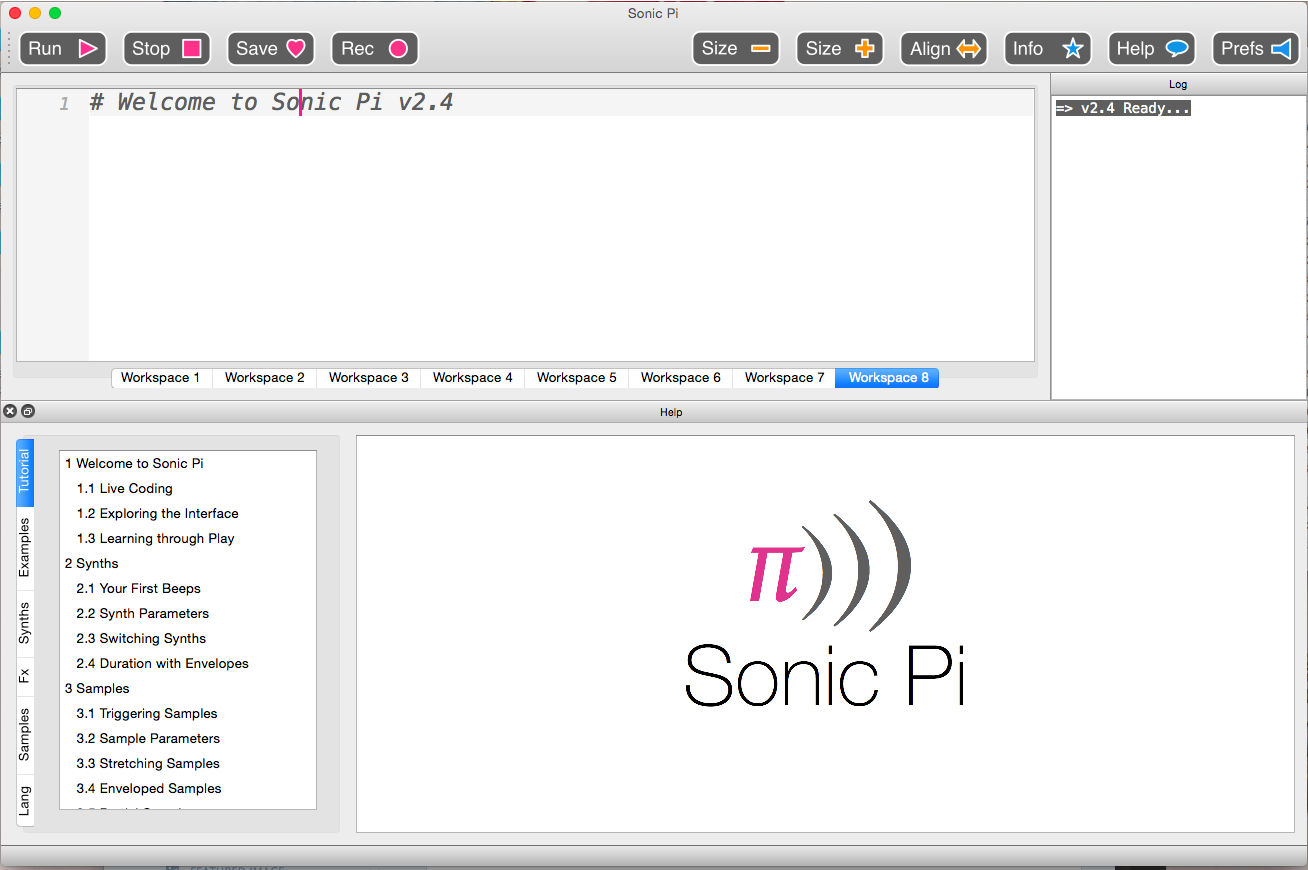
Screen Shot 2015-04-03 at 13.27.36So, how does Sonic Pi work – the first thing you need to get to grips with is the tutorial at the bottom left of the page – clicking on the tutorial tab will open a collection of tutorials which will allow you to get to grips with how the system works.

Screen Shot 2015-04-03 at 13.30.13

You can see  in the first picture that there is a middle bar which allows you to select one of 8 workspaces where you can input your code.

The most simple thing you can do is play notes and ‘compose’ a tune using simple commands – to play a middle C, all you need to do is type:

play 60

or

play :c

or even

play :c4

If you’re musical, you may recognise that middle c is the 4th octave so yes, you could try ‘play :c5’ and play a different c. I’m not musical, so I’m content to say that these notes all make the same nice sound. Notice that there is a colon before the letter, but not before the number. It is important to remember this as it is one of the common errors that children will make.

You can obviously also put different notes in by using different numbers with the play command e.g. play 75 would play a higher note. The children in our workshop liked to see just how high you could get and soon found that somewhere over 100 the notes become too high to hear.

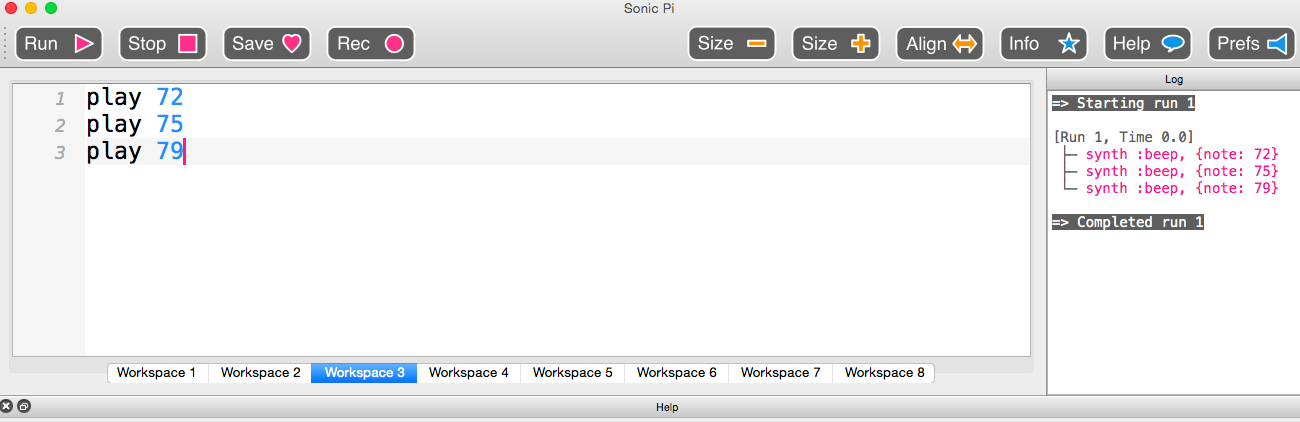
At this point, you could try play a selection of notes one after the other –

Screen Shot 2015-04-03 at 13.38.26

Guess what, this is code, things are never as simple as that – playing all of the notes laid out like this basically plays them all at once since there is no wait command between each note – the computer tries to play them all together. In this instance, they will play a chord because the notes complement each other, but if you try other notes you will simply make a cacophony.

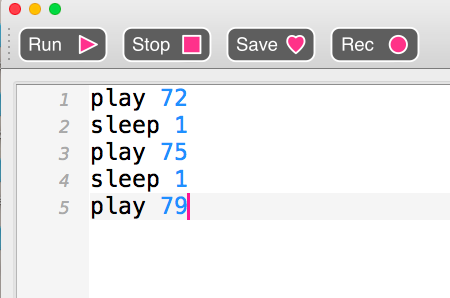
Screen Shot 2015-04-03 at 13.40.36

So, by adding in a sleep command you can put a pause between notes.

One of the children I teach got this far and then carefully composed the Ride of the Valkyries in his own time, however, composing individual notes is not what Sonic Pi is really all about. The most interesting feature is to do with samples – as Sam explained to the children, in a musical context, a sample is a short snippet of sound which has been used to enhance a piece of music. It can be a complete piece of music or a simple drum beat. Sonic Pi has a large selection of built in samples which can easily be sped up, slowed down, cut short or looped and it is very simple to combine these for a lovely music effect.

So let’s say we want to play the sample :loop_amen

Screen Shot 2015-04-03 at 13.55.52

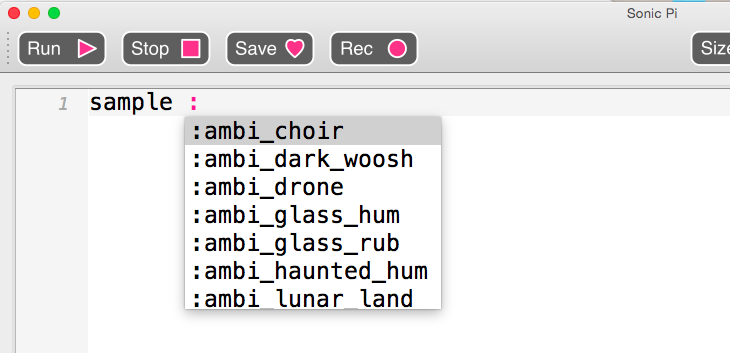
As soon as I type in ‘sample :’ then I get a drop down menu of all of the different samples – the children in the workshop absolutely loved having the opportunity to just play with each of the different samples and combine them to make new sounds.

The next thing you can do is play with the rate of the sample:

Screen Shot 2015-04-03 at 13.57.23

By adding in a rate you can make the sample either faster or slower – in this instance, the play back is half its usual speed so it sounds a bit like a Groove Armada track, but if you go the other way and speed it up to a rate of 1.5 it sounds much more like a jungle beat. Already our track is sounding pretty cool. You can also use negative numbers to play samples backwards…

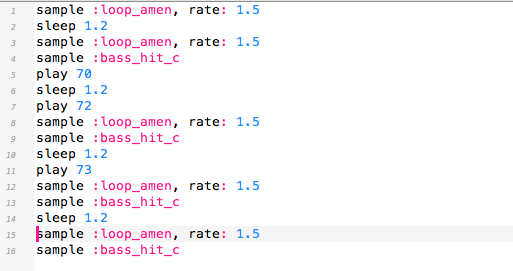
So, now I added in a few notes to play with along with some sleep commands :

Screen Shot 2015-04-03 at 14.04.20Suddenly I have actual music coming out of my speakers and, as I’ve already said, I’m about as musical as a dead fly. You can imagine the excitement of children who have quickly and easily managed to make lots of music with a few simple instructions.

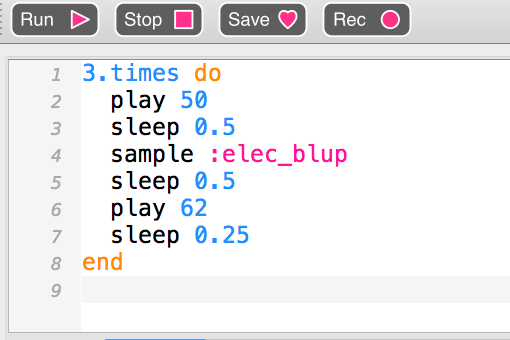
I’m going to finish the what you can do section here – there are so many other things you can do with Sonic Pi, but really the best way to find out is to have a play yourself – there are simple instructions for looping bits of music- either for a certain amount of times or indefinitely:

Screen Shot 2015-04-03 at 14.25.39

Screen Shot 2015-04-03 at 14.26.07

You can alter the sound of the beeps with “use_synth” e.g.

use_synth :saw

The ultimate goal is to live code by using live loops which constantly play while the user updates small bits of code to alter the pitch or pace of the song.

So, why is Sonic Pi valuable?

As I’ve already mentioned, children love instant results and Sonic Pi more than allows that – one line of code and you have a nice little sample of music playing. It’s easy for children to make simple tweaks to code which have broad and obvious results. It’s also really easy to debug – the code is clearly coloured which gives children a clue as to whether their code is going to work. The children must make sure their code is correct – a lot of the children made mistakes with the sample command because when you type in the word sample it automatically loads a drop down menu:

Screen Shot 2015-04-03 at 14.36.16

They also frequently forgot to use a colon before listing the name of the sample so that, even when copying information from the board, they made errors. So, importantly, Sonic Pi can help with the important skill of debugging and the fact that children constantly need reminding to test their code frequently as part of the debugging process. Unfortunately, the current version of Sonic Pi doesn’t clearly let the user know what the error in their code is, but Sam is already working on making the error codes more clear for children (and their teachers) in future versions.

In terms of it’s musical usefulness, it can help children to gain a better understanding of pitch and pace and it can be surprising to see which children are particularly successful at writing phat drum & base tunes!

Key for me was that all of the children that took part in the workshop with Sam enjoyed themselves, enjoyed coding and left excited and eager to create their own music. Some of the children even emailed themselves their code to carry on working on it at home. These children were Year 4 and so only 8 or 9 years old, they were of mixed ability with many of them struggling with learning difficulties, however, they were all involved and they were all coding confidently. What surprised me most of all was that the most able children were not necessarily the most competent and in fact the two who produced the most eloquent pieces of music were both average ability children, only one of whom even played a musical instrument.

It takes a bit of playing and getting used to, but I really think Sonic Pi is an excellent resource for getting kids to learn how to code and to make them more confident and comfortable with the language of code. So, why not give it a go and remember, Sam is probably one of the most approachable people in this community and is more than happy to receive weird twitter questions in the middle of the night (trust me, I know this from experience).

The PiStop

I’ve realised that I haven’t yet written a blog post about my favourite bit of kit for the Raspberry Pi, the PiStop by 4Tronix.

So first lets talk about why I like it so much then I’ll talk through a demo of using it. Earlier in this blog, I talked about the CamJam EduKit and how much I liked it, the biggest problem was the wires – for younger and not so dexterous fingers, all that work with fiddly LEDs and resistors and cables is quite a hassle; not to mention just grasping the whole concept of why. When you finally get everything wired up, the next task is to write some code in either Scratch or Python and THEN you get an exciting output of flashing lights. Not so with the PiStop – it neatly slots over 4 of the GPIO pins (three programmable GPIO pins for the LEDs and one ground to complete the circuit) and then you can just load up Scratch and code away. For me, this is ideal for the younger and more easily distracted children as it’s quick and easy to make something actually happen with a few blocks of Scratch code. It’s also easily extendable – once you have one flashing light, can you make the other 2 flash? Can you make a traffic light sequence? Can you now write the same code in Python? Then once all of those activities are complete you can then run the whole activity with cables, breadboards and LEDs, but now the children are excited, they already have an idea of how to get the code working and building the circuit is like moving on to the ‘grown up’ stuff like the CamJam kit.

So, how do you plug in your PiStop? I’m a creature of habit so I tend to always plug the PiStop into the same place – it can actually be placed anywhere on the pins where you have one ground and 3 GPIOs together.

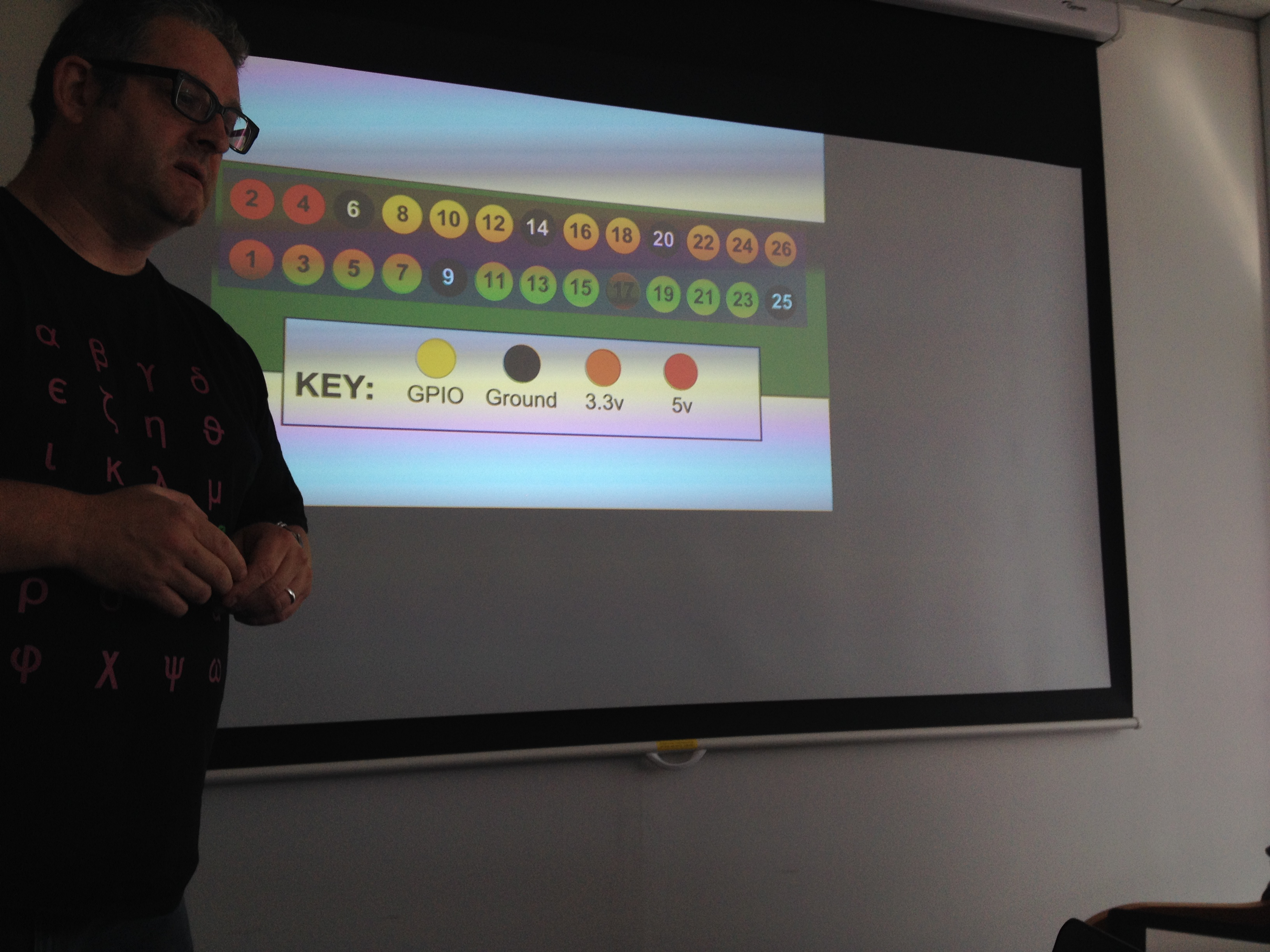
I’ve mentioned before that there are two different numbering systems for the GPIO pins, the picture below shows both number systems for the model A and B Raspberry Pis, which are the older versions with only 26 pins; both the B+, A+ and 2 models have 40 pins, but the first 26 are the same as below. Raspberry-Pi-GPIO-Layout On this diagram, the ground pins are labelled in white, the programmable pins are green and the live, powered pins are red and orange. The most popular labelling system, known as BCM, is listed in the white boxes on the outside, whilst the simpler numerical system is written on the pins. From my experience ScratchGPIO uses the simple numerical system, but it might work for both! My usual spot for mounting the PiStop is from numbers 9-15.

The first thing you’ll need to do is to make sure that Scratch GPIO is installed on your Raspberry Pi – details for how to do this from Scratch GPIO creator Simon Walters can be found here.

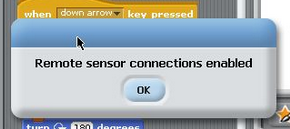
Once installed on your Pi, load it up and cross your fingers – you should get a message box pop up telling you that remote sensor connections are enabled – if you don’t you will need to run some updates because it means it’s not working properly (boo hiss). I came across this a few times with the latest version of Rasbian and I’m not going to lie, I had to resort to getting someone more technical than myself involved.

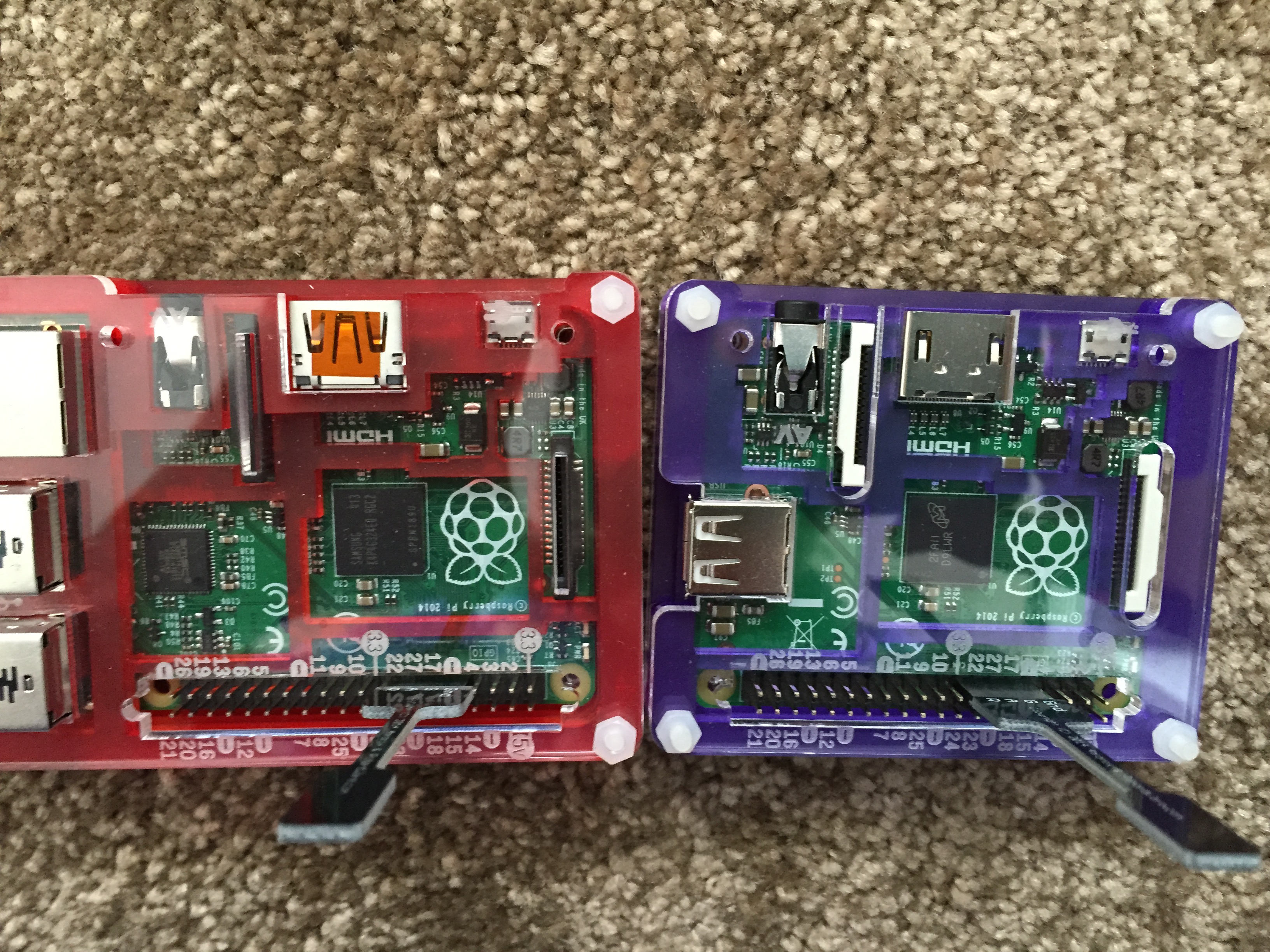
Screen Shot 2015-03-30 at 13.43.01So, let’s assume that you have got Scratch GPIO working fine and your PiStop is plugged in as in the photos below:

IMG_6146 IMG_6147

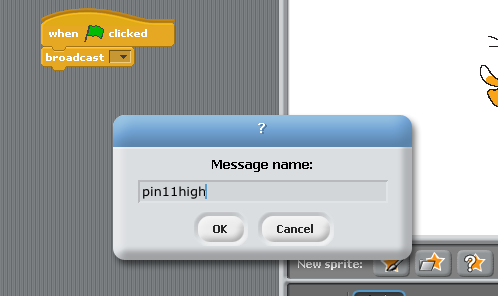
So to make the first light turn on we need to use the control tools on Scratch – our key command is ‘broadcast’ with high being on and low being off.  See the photos below for step by step instructions for turning the first light on and off ten times.Screen Shot 2015-03-30 at 16.21.24Screen Shot 2015-03-30 at 16.21.31Screen Shot 2015-03-30 at 16.21.39

Screen Shot 2015-03-30 at 16.32.41Screen Shot 2015-03-30 at 16.32.27

You’ll notice that I’ve put ‘wait’ blocks in between each of the broadcasts, inevitably the children will miss these out once in a while, which will cause the lights not to work- this is great because you can reiterate both the importance of debugging and that code does exactly what you ask so your instructions need to be clear. IMG_4908

Once I’ve shown the children this step, I usually ask them to figure out how to get the other two lights on (pin 13 and pin 15) then the challenge is to try and make a traffic light sequence. I was fairly impressed when a couple of boys extended themselves by using the CamJam Python code with the PiStop to broadcast what they referred to as a disco, whilst on the screen a selection of messages appeared in their Python window using the print command.

So, basically, this is a very simple, cheap piece of kit which is really easy to use and a great stepping stone to more complex code. I would definitely recommend that any Raspberry Pi teachers get at least one PiStop into their classroom as a starting point for physical computing.

Good luck everyone and enjoy coding!

PS For anyone who’d prefer a real life demo, my next coding evening will be on Tuesday 5th May in Twickenham

Coding Evening Part 2

Just a quick post…

I’ve met with so many lovely people in the last few weeks and I’ve mentioned my coding evening to them so I thought it was worth writing a quick post to make the event page easy to find. I also want the opportunity to explain a little about how I want the evening to run.

So, way back at the end of January, I hosted my first coding evening, with the goal of getting teachers, Code Club volunteers and Raspberry Pi enthusiasts into one room just to see how everyone is getting on.

It turned out to be a lovely evening with lots of great chat about ideas for teaching the new computing curriculum and lots of enthusiasm to repeat the event.

For next Friday I’ve once again booked the lovely function room of the Stokes and Moncreiff pub in Twickenham. I hope to have three Raspberry Pis set up for people to try out or demonstrate on. I also plan to bring loads of resources and print outs from Code Club, Code Kingdoms etc. There’s an added bonus of the pub downstairs serving beer, wine, spirits (and soft drinks) as well as pleasant food which they will deliver to the function room. There will be Code Club volunteers, technicians, Raspberry Pi fans and an iPad specialist on hand to answer your questions. It would be lovely if people are willing to stand up and talk for two minutes on a subject of their chosing, but I’m certainly not going to enforce this.

So, if you’re still interested in coming, click the link below, sign up (it’s free) and we’ll see you there for a burger, beer and a great conversation about the computing curriculum:

https://www.eventbrite.com/e/twickenham-coding-meetup-part-2-registration-15481779419

Picademy – Why Apply?

As you may have noticed, I’m a bit of a Raspberry Pi fangirl, which came from attending Picademy last July. I did what many primary schools did – heard about Raspberry Pi and bought some Maplin kits which then sat on the shelf because I didn’t really know what I was doing. I had a look on the internet, but I just wasn’t really confident enough to give them a go – I did manage to set them up once or twice and desperately tried to use LXTerminal to make a jelly baby scream, but I really didn’t know what I was doing. One day, while checking twitter I happened to see a post about Picademy and started doing some research – at that point they had hosted one Picademy and were advertising for two more in June and July – luckily for me the July course coincided with the end of term and so I made a video and sent off my application; once my place was confirmed, my school agreed to pay for my expenses and I was all set for two days in Cambridge.

The first thing I really loved about Picademy were the emails that started flying back and forth beforehand. Within an hour of being offered a place, Christine, a teacher in Bradford, had agreed with me via twitter to try to get everyone staying in the same hotel. Within a few days about 80% of us were booked into the same Travelodge on the outskirts of Cambridge and we were getting excited about meeting each other.

I was the second person to arrive and I headed down to meet Tom Sale in the hotel bar for a quick meal. As we sat there more and more people arrived, some people recognising each other, others of us being strangers to everyone – people were offering to collect other members of our group at the train station, we were starting twitter hashtags around our jokes and, much to Carrie Anne‘s dismay, the beers were flowing freely. It was a fantastic bonding experience and as the evening drew to a close, we booked our taxis to PiTowers for the morning.

The first day of Picademy we arrived and had to chose one of 4 tables – the tables were labelled with the names of 4 ‘master teachers’ from our group – much to our surprise, several of our new friends were already making a mark in the world of computing. I chose to sit with Matthew Parry, a robotics specialist working in a special school and our adventure began.

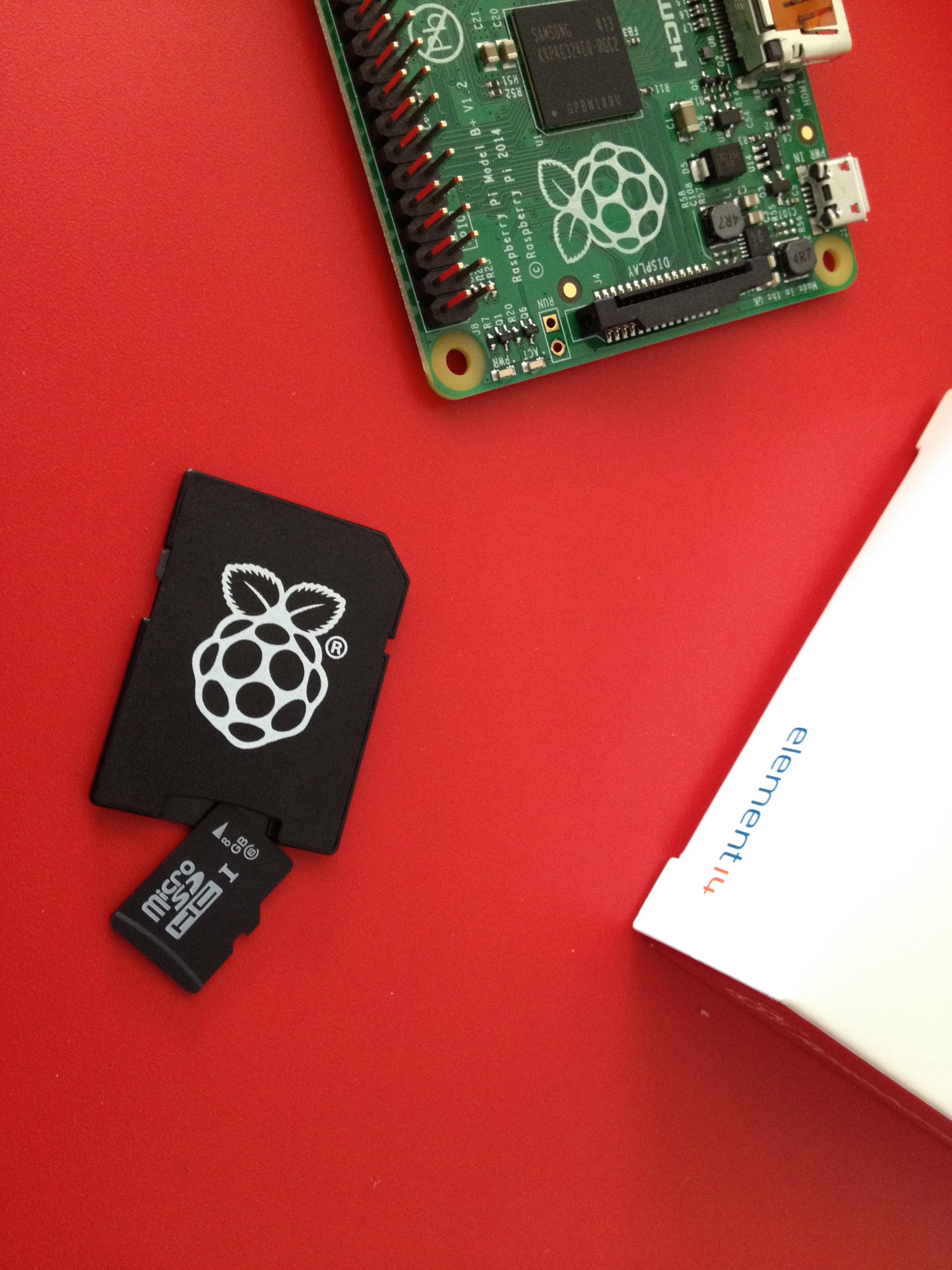
Most excitingly, we were starting Picademy on the day that Raspberry Pi B+ was launched and so everyone one of us had a brand new B+ in our goodie bags – we were the first people in the world to start using one – a huge honour!

IMG_4902     IMG_4905

After a brief intro from Carrie Anne Philbin, we were taken into another room to look at some Scratch GPIO and Minecraft coding in Python – both of which were new and interesting to me. After a lovely lunch we were then shown how to set up a PiCamera and then spent some time with Sonic Pi – Unfortunately for us, we were the only cohort to not have the experience of Sam Aaron showing us how to live code music, but I have since seen him perform and can honestly say that he is amazing!

IMG_0219 IMG_4907 IMG_4906

The lovely people at The Raspberry Pi Foundation took us out for a meal in Cambridge and then we headed to a nearby pub to start discussing our independent project ideas for the next day – there were some really cool ideas flying around like coding a Minecraft version of Portal or using plates and tin foil to make a dance mat and everyone was really excited for the next day to come around. Back in the hotel bar, more ideas were bouncing around the table, some ludicrous and some perfectly feasible.

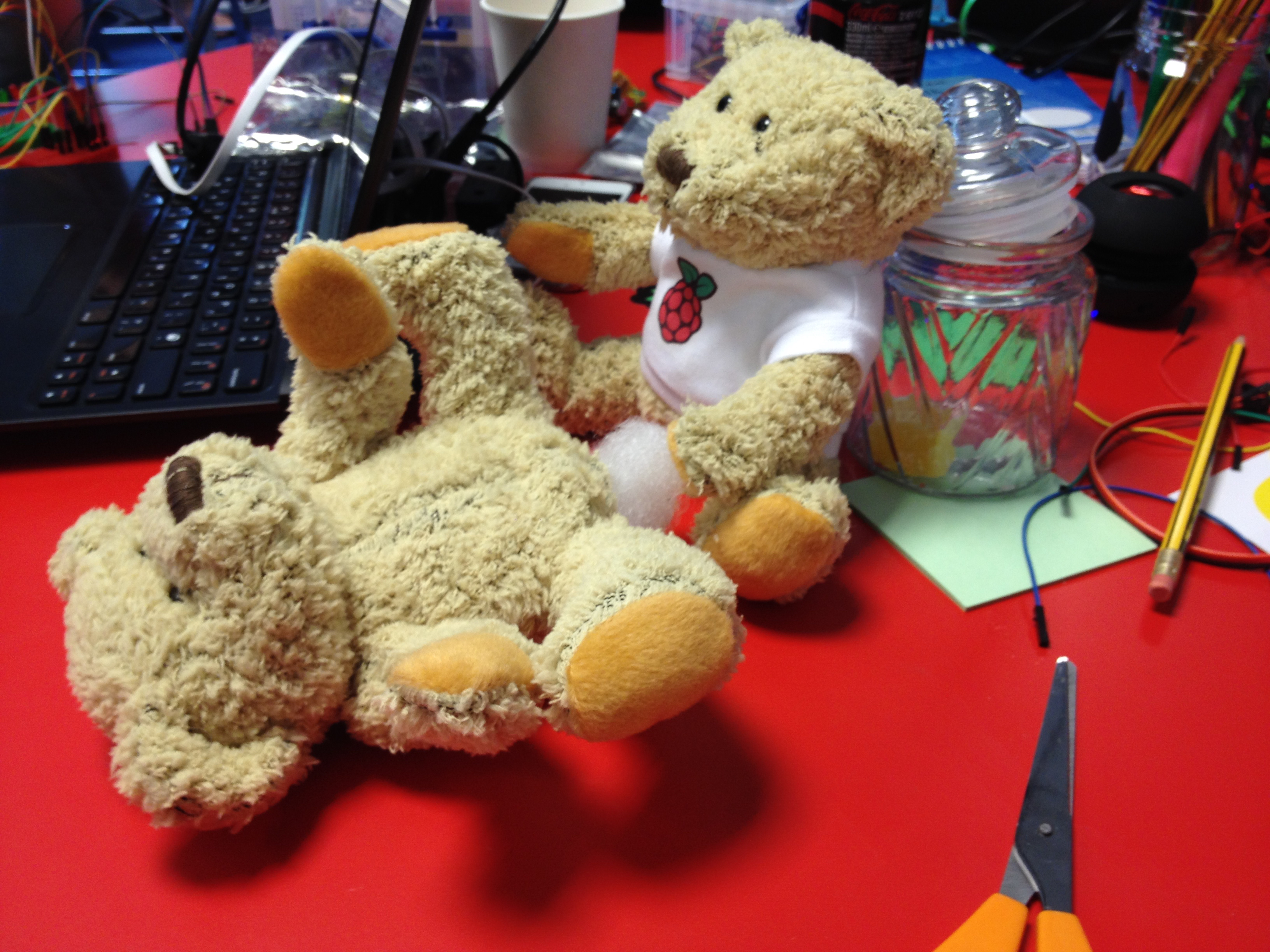
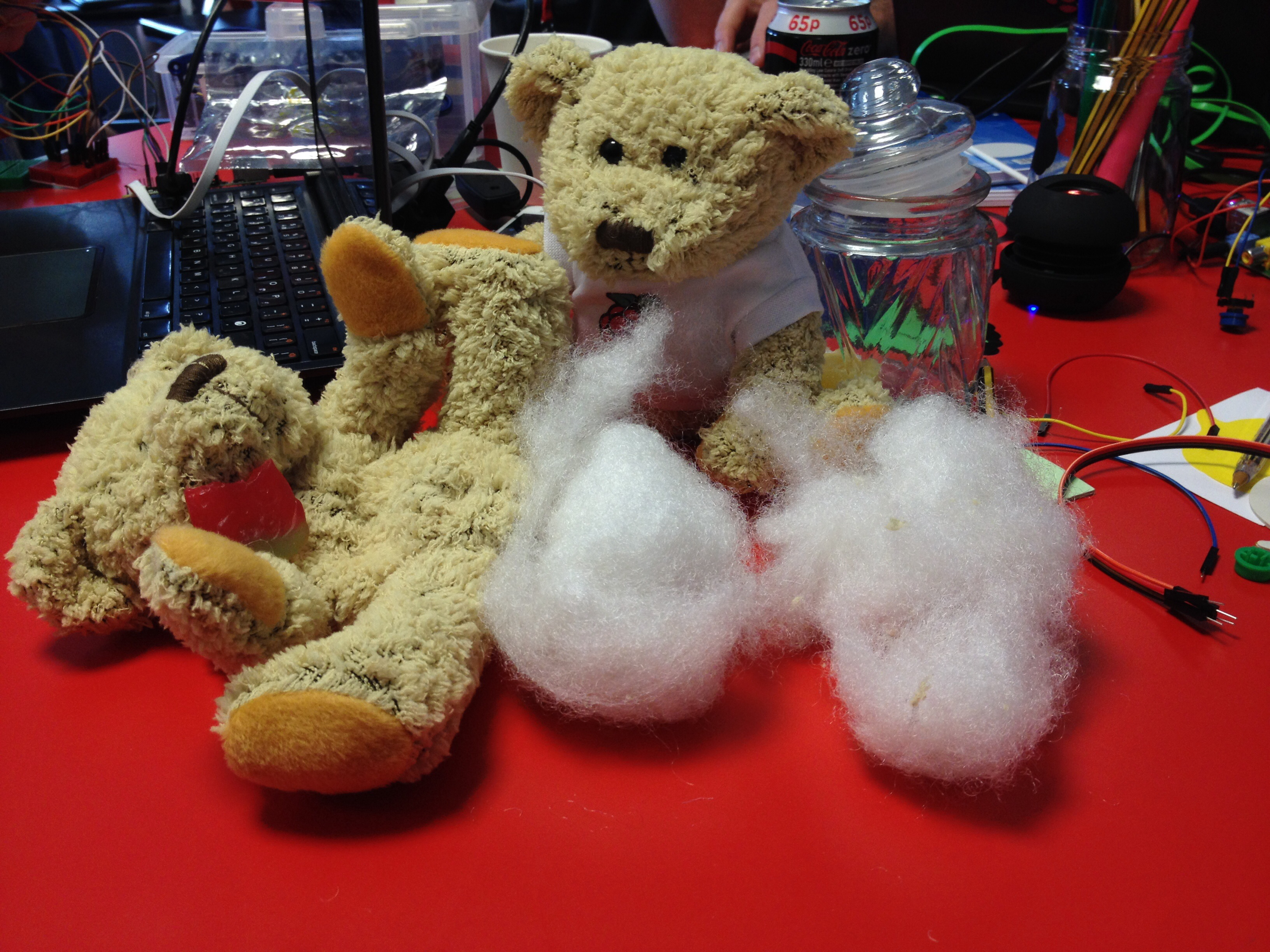
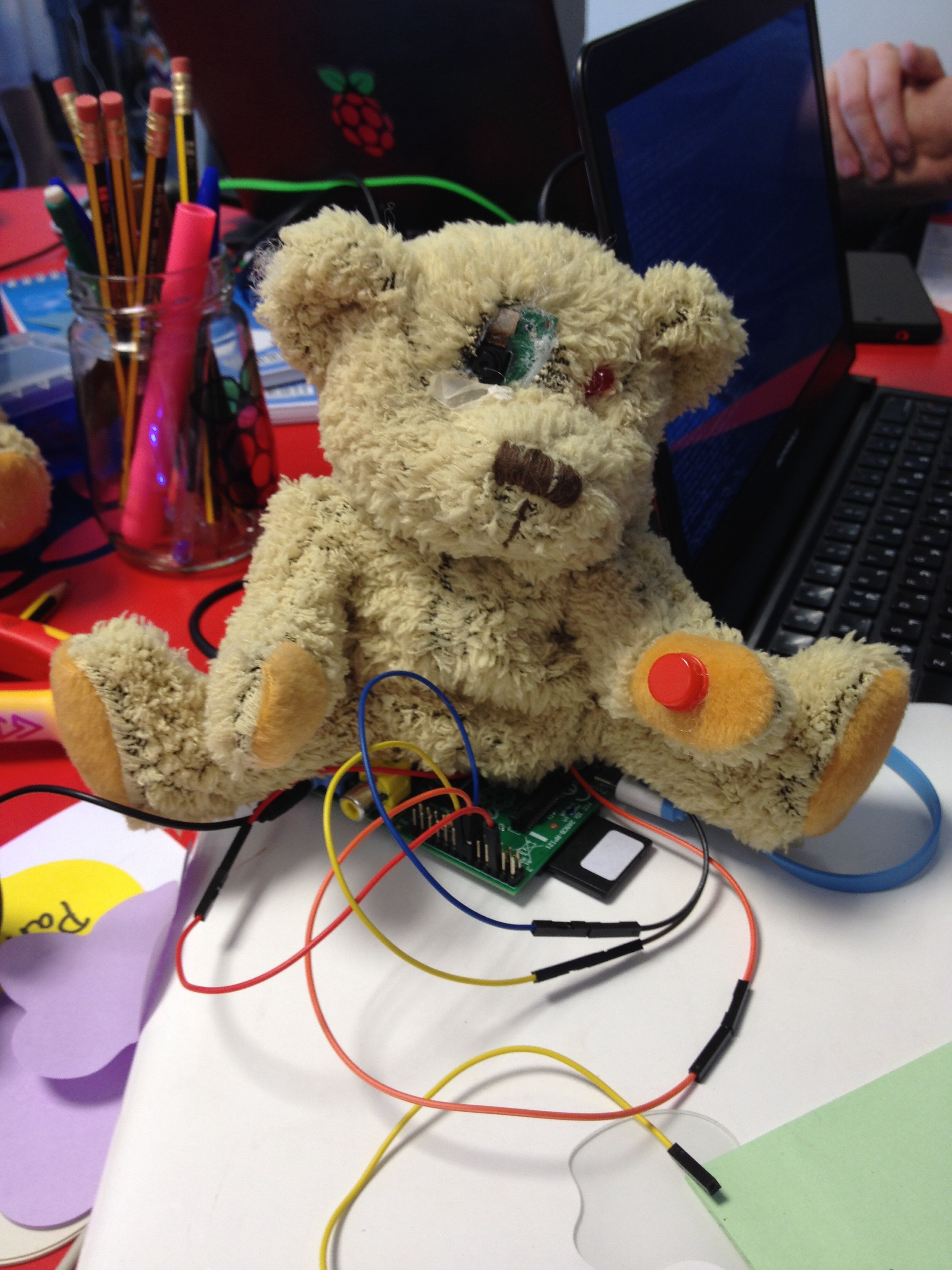
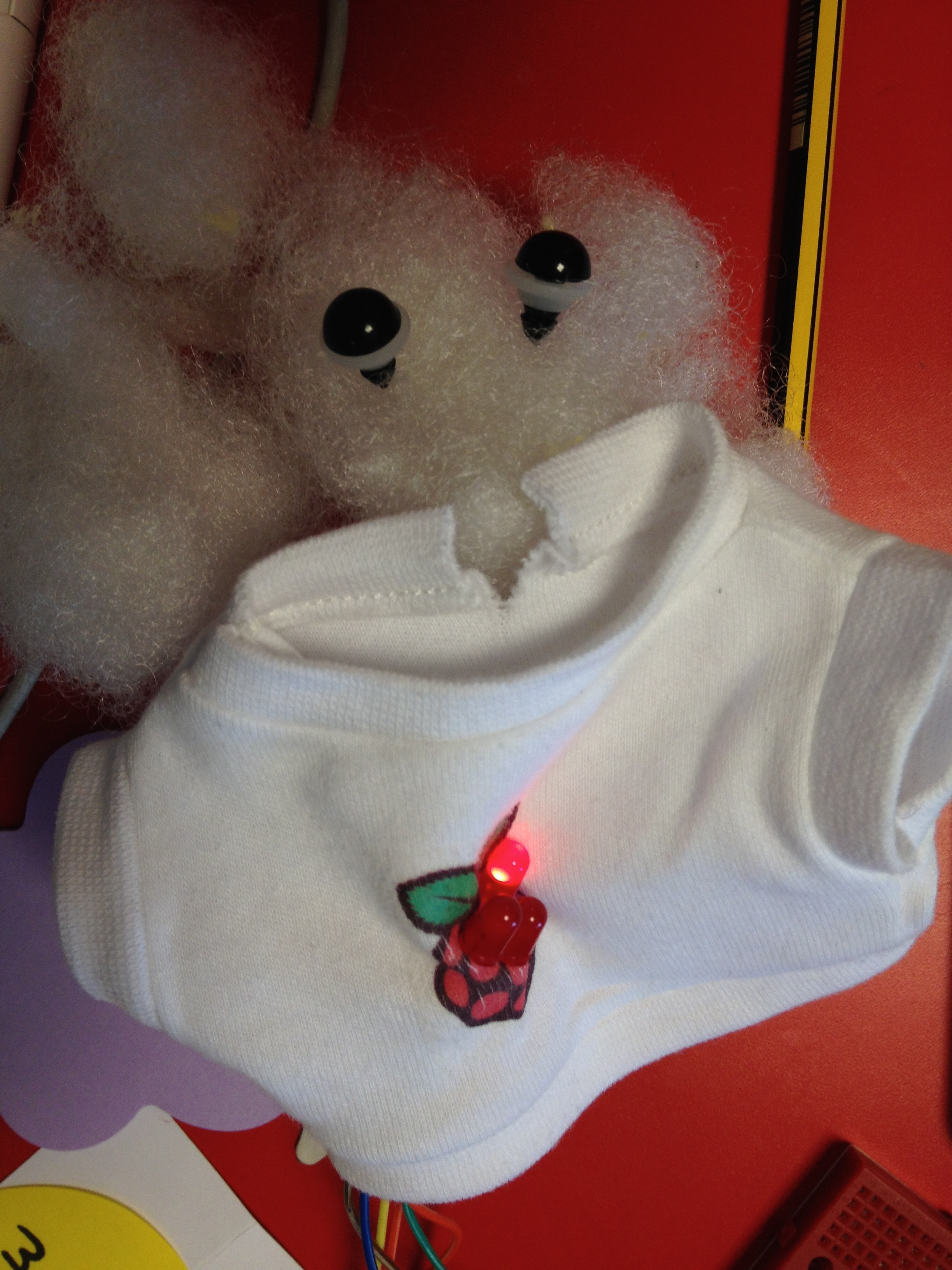
When we sat down the next day, Matthew revealed to us his idea – while the other tables in the room split off into pairs or small groups, we stuck together and planned our Tweeting Babbage Bear.

babbage

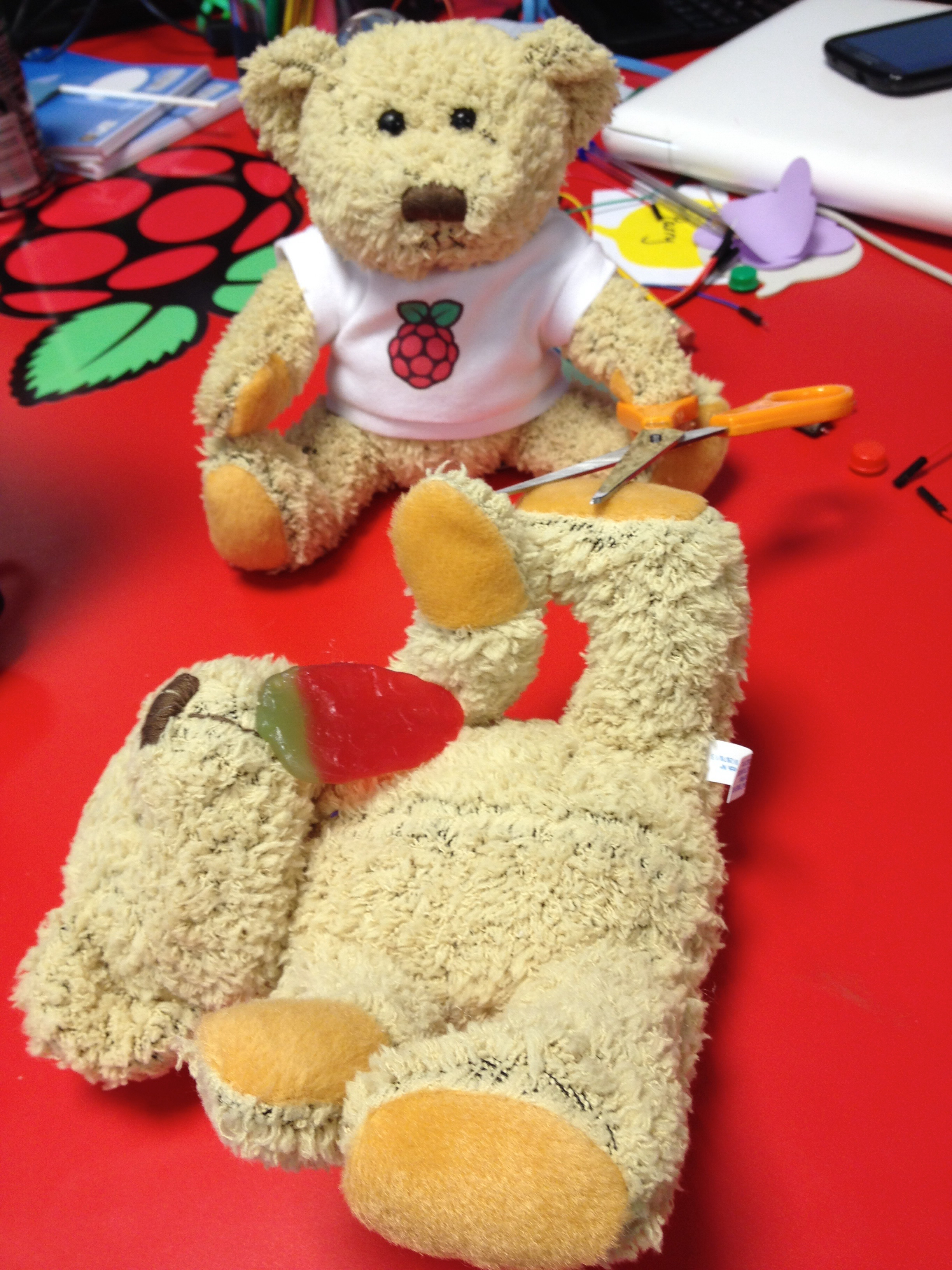
The idea was to use the Raspberry Pi mascot Babbage Bear and make a twitter bot which photographed you and sent it to twitter; the only difficulty was getting permission to pull apart the beloved bear!

We split into teams with different task – Matthew and Hannah worked on the code for photographing, whilst Eve and I set about finding out how to tweet from the push of a button attached to the Pi with various other members of our team working on other ways to make Babbage interesting, from sounds to LED vests. All credit to Ben Nuttall of the Foundation who very patiently guided us through the set up, using GitHub and finding the right commands for Twitter API and apologies to everyone else for the massive scream of delight from Eve and myself when we finally got the code to work. We were so proud of our tweeting Babbage and particularly so when a few months later Ben turned the project into a resources on the Raspberry Pi Website.

After receiving our badges our adventure at PiTowers came to an end; however, that wasn’t the end of the story at all.

Since Picademy, not only have I kept in touch with my cohort, I’ve come in contact with members of the other cohorts via Google, Twitter and through meeting them in person at events. I’ve also made contacts with people wanting to join Picademy who want to ask my advice or just to find out about what it’s like. I’ve become part of the Pi community, making dozens of new friends, some of whom I’m finally met this weekend at the Pi Birthday party. I know that if I have a teaching or Pi problem, dozens of helpful people are simply a tweet away. Through my contacts I’ve ended up speaking at BETT and organising coding evenings and, most importantly, I’ve gained the confidence to affectively teach the children in my care as well as to share my ideas with my fellow teachers.

Picademy was one of the best experiences of my life and I would thoroughly recommend it to anyone else.

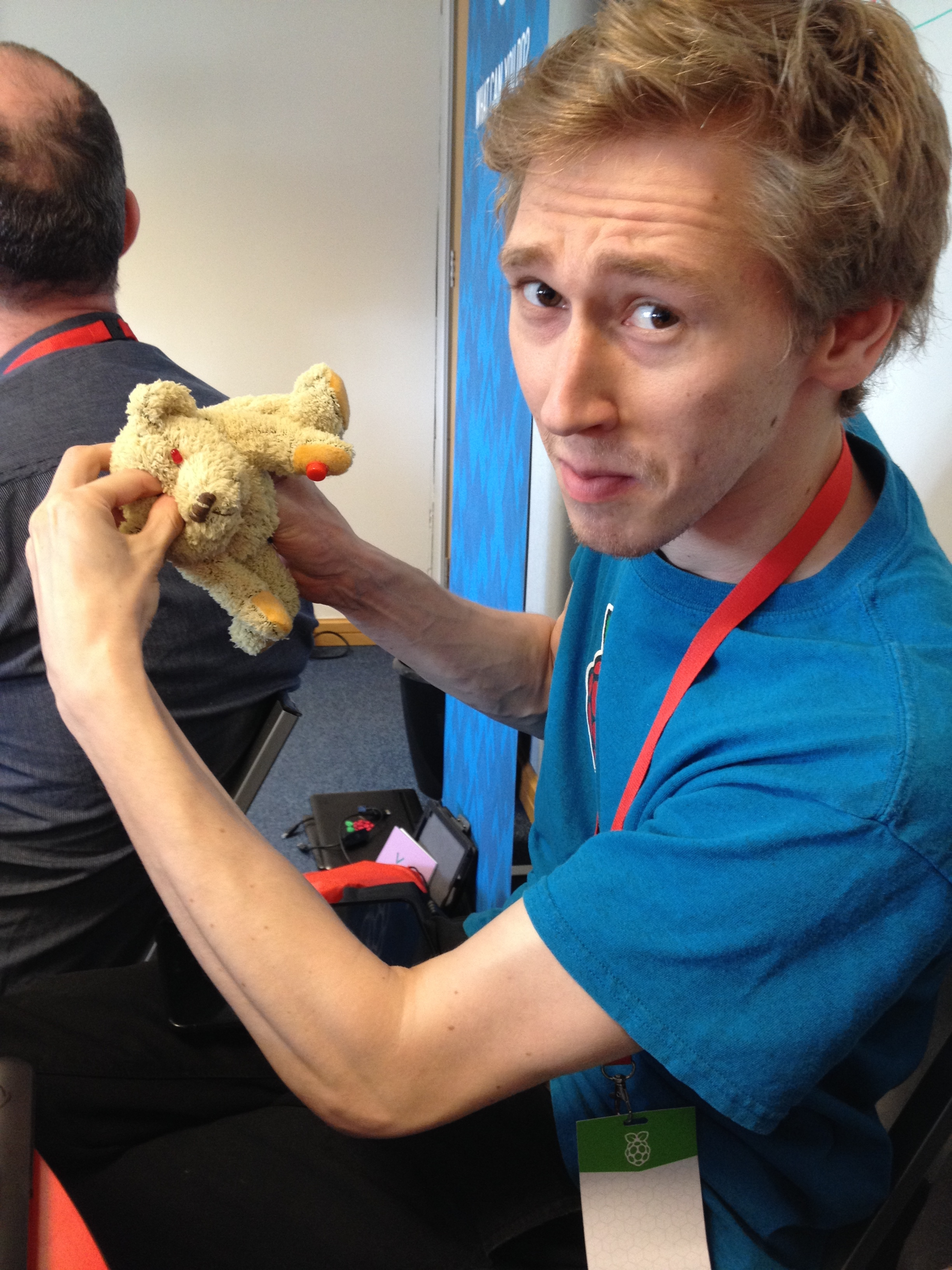
PS Here are some pics of the destruction of Babbage – not for the faint hearted!

IMG_4914 IMG_4915 IMG_4916 IMG_4917 IMG_4920 IMG_4921

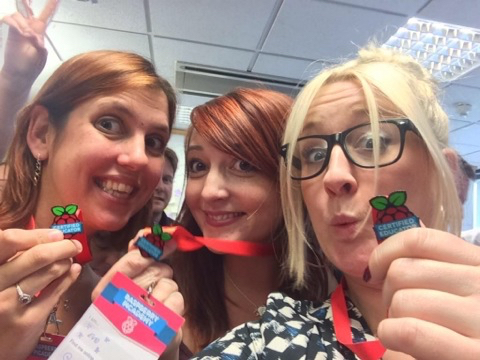
PPS – this photo was captioned ‘Certifiable’ and was taken just after we became RCEs – I’m meeting these two lovely ladies for some cocktails in a few weeks so not only have I made amazing professional contacts, but I’ve also made a great bunch of friends!

IMG_4922

Astro Pi Competition

Yesterday I was lucky enough to attend the Raspberry Pi third birthday party event in Cambridge. While I was there I took the opportunity to talk to the lovely Dave Honess about the competition he is helping to run for Raspberry Pi in collaboration with the UK Space Agency, Astro Pi.

The competition was launched a month ago at BETT, and I will readily admit that I wasn’t particularly fussed about getting involved. I wasn’t inspired and didn’t think I had the time to take part; however, after a long chat with Dave, I now feel really enthusiastic and excited about it as well as being full of ideas.

So what is the idea? One of the astronauts heading to the International Space Station, Tim Peake, has agreed to take a special Raspberry Pi into space with him. They’d like schools and Code Clubs to think up ideas for using the Pi and it’s sensors in space so that they can send their code into space!

Dave pitched the idea to me by suggesting that the Pi would be like a device at home on the shelf. What would you like it to do? What do you think an astronaut might like to have it do? Perhaps it could tell a joke whenever the motion sensor detected the astronaut go past or else display the flag of the country the station is above. The KS3 and 4 competition seems more geared towards recording data and results, but for primary, there seems to be a push towards a more fun app being planned and designed. Also, in a primary school the children just need to come up with an idea and then the guys at Raspberry Pi will create the code.

So, here is the Astro Pi board:

IMG_5964

There are a number of sensors on the board as well as a basic LED matrix to display simple designs on. Here is the listed hardware:

  • Gyroscope
  • Accelerometer
  • Magnetometer
  • Temperature sensor
  • Barometric pressure sensor
  • Humidity sensor
  • 8×8 RGB LED matrix display
  • Visible light or Infra-red (Pi NoIR) Cameras
  • 5 button joystick
  • Additional functional push buttons
  • Real time clock with backup battery

I’d like to find a video showing what conditions are like in the Space Station with zero gravity etc. and use this as a discussion point for what you might need if you were there. From this you could move on to what you would miss most if you were space for a bit of cross curricular PSHCE. Finally, this would lead on to what could you use the Raspberry Pi for in space- what do you think the astronauts might want or need that the Pi can provide?

<edit> A video of a ‘fly through’ of the space station can be found here which features an astronaut floating from one end of the station to the other and could be used as a starting point for discussion.</edit>

The children could then work in small groups and develop their ideas for a useful app in the space station – I’d also spend a little bit of time looking at the experiments theme ideas on the Astro Pi website (Spacecraft Sensors, Satelite Imaging and Remote Sensors, Space Measurements, Data Fusion, Space Radiation), but I think from a primary perspective it would be simpler to focus on ways to entertain the astronauts while they’re away from home.

I’m quite excited to get involved – entry seems very easy and I think it could be done in a single afternoon rather than spending too long fitting it in. I think you could get children really excited about science and space and bring in some PSHCE too so it’s got some good cross curricular links. What more could you want? With a few more resources in place it should be an excellent and fun competition for everyone to be involved in.

So, very simply, I’d like to encourage more of you to take part in this competition – the more people who get involved, the more likely this competition will run again and I think it would be a great idea to get children interested in coding – a real time application for code and the Raspberry P. The competition closes on 3rd April, so you still have a month to get your ideas together.

<edit>Raspberry Pi have now created a worksheet for the Astro Pi competition which can be found here </edit>

<edit 2>We received results from the first stage of the competition last week-I’m so proud to be able to say that one of our teams was highly commended by the judges! Well done boys <edit 2>

A Mac Geek’s guide to VNC on the Pi

Do the following in order to get VNC working on your Pi, advertised over Bonjour.

  • Plug Pi in to network and power
  • ssh into your Pi after finding out its IP address by looking at your DHCP server’s leases or scanning for the Pi using nmap (http://nmap.org/download.html#macosx)
    e.g.

    $ sudo nmap -p22 --open 10.0.1.0/24

Nmap scan report for 10.0.1.2
Host is up (0.0039s latency).
Not shown: 98 closed ports
PORT     STATE SERVICE
22/tcp   open  ssh
MAC Address: B8:27:EB:4C:3D:1C (Raspberry Pi Foundation)

$ ssh pi@10.0.1.2
pi@pi ~ $ sudo raspi-config
  • Enable the Pi to boot to desktop rather than stop at the CLI
    Set hostname to something unique from the advanced menu option
  • define http proxy if required. Either edit .bashrc or use your preferred method.
  • Update stuff and install required packages
    sudo apt-get update
    sudo apt-get install avahi-daemon
    sudo apt-get install x11vnc
  • Copy the supplied avahi service file
    sudo cp /etc/avahi/services/udisks.service /etc/avahi/services/rfb.service
  • Edit the file and change udisks-ssh to rfb and 22 to 5900. Save.
    sudo service avahi-daemon restart
  • Set a vnc password using
    x11vnc -storepasswd
  • Insert the following into ~/.config/autostart/x11vnc.desktop
[Desktop Entry]
Encoding=UTF-8
Type=Application
Name=X11VNC
Comment=
Exec=x11vnc -forever -usepw -display :0 -ultrafilexfer
StartupNotify=false
Terminal=false
Hidden=false
  • Reboot Pi. Once booted the Pi should appear in your Mac’s network browser and you should have VNC access via Screen Sharing.
  • If necessary, edit /boot/config.txt to change screen resolution. I use the following settings:

hdmi_force_hotplug=1
hdmi_group=2
hdmi_mode=16

Enjoy

Remote control your Pi using your Mac

This is the first of what will hopefully be a series of posts by me. There will be an emphasis on the more technical side of things but, with any luck, things will be explained in plain English. I like to think that even though I am a geek by day I can still see things from the perspective of a ‘normal’ person 🙂

I have been asked by a couple of schools to give them guidance and/or training on how best to use their Pis without having to beg, borrow or steal monitors, keyboards etc when they already have a perfectly (good?) functioning suite of computers. As I tinker with Apple kit all day long, a lot of these posts will be weighted towards making a Pi work with Macs.
Continue reading “Remote control your Pi using your Mac”

Hour of Code – Frozen

In December there was a lot of press about Hour of Code; they managed to get Barack Obama to write some code (and David Cameron, but does anyone really care?). The site was also really lucky to strike a deal with Disney to be able to use Elsa and Anna from Frozen. As any primary school teacher knows, Frozen is a sure fire way to get the interest of nearly any KS2 girl!

So, what’s it all about and is it any use? I set my year 5 and 6 kids to have a go and work through the exercises, needless to say the girls enjoyed it more than the boys and were quite chuffed with their certificates (even the hardened Year 6 girls who like to pretend they’re too cool for Frozen), whereas my boys scrolled down the site and found the Angry Birds game and gave that a go.

I’m really impressed with the Frozen resource not least because it works on iPads as well as on a laptop.
Screen Shot 2015-02-20 at 15.13.56

The first thing you see when you go to the site is a video explaining why computer science is important – the first minute or so includes Bill Gates, Mark Zuckerburg and the guys who created Dropbox and Instagram as well as programmers from Google and Microsoft. We are also introduced to two models, one of whom is a complete beginner at coding and one who studied computer science as well as theatre at college – it is through the latter of these, Lyndsey that we learn about the the Frozen code – we will be guiding the characters through various ice skating tasks using Blockly (similar to Scratch), which is a block based language of code. The remainder of the video features Lyndsey explaining how Blockly words, although anyone familiar with Scratch should be able to pick it up quite quickly.

So how does it all look:

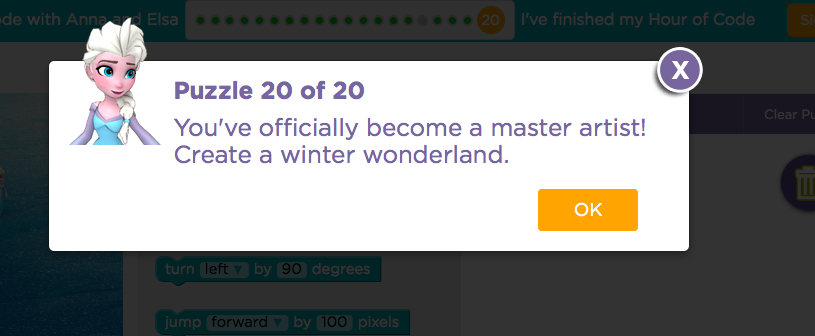
Each puzzle begins with a splash page explaining what to do

Screen Shot 2015-02-20 at 15.24.11
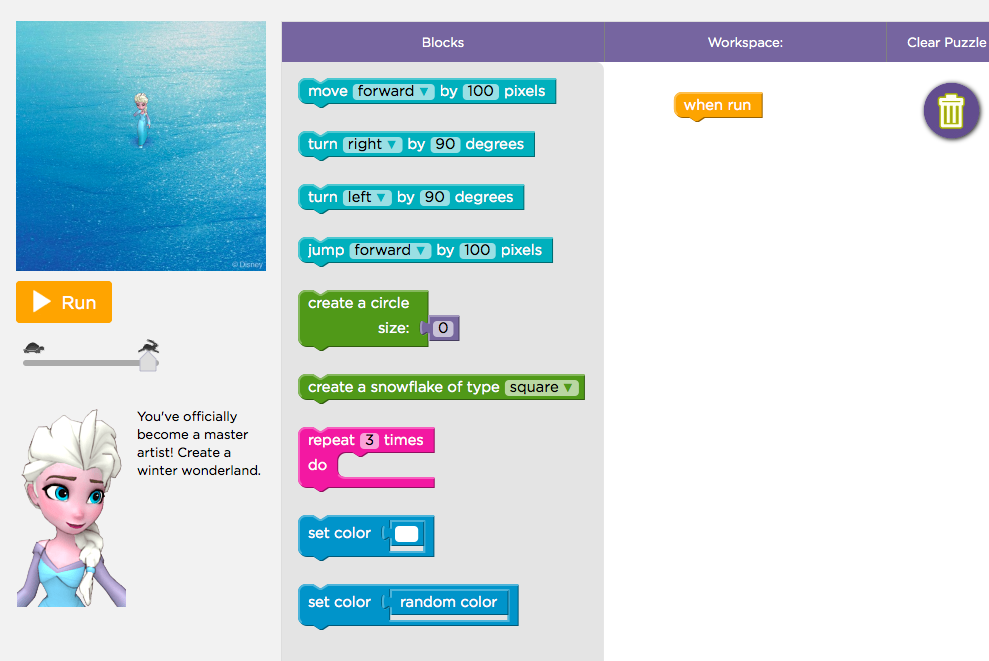
Then you are taken to the main coding window – like other block based languages, it’s just a drag and drop activity.

Screen Shot 2015-02-20 at 15.24.18

You will notice that the goal for this task is repeated in the bottom left of the window.
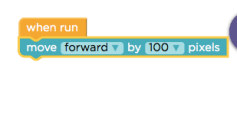
Screen Shot 2015-02-20 at 15.24.26

So here you can see my first line of code – its useful to note that the instruction video doesn’t mention the “when run” block that your code needs to be attached to – presumably this was added after the video was made.

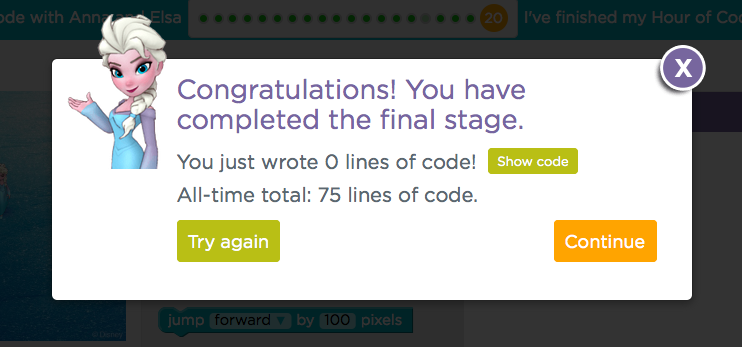
You also get a nice little congratulations window at the end of each puzzle:

Screen Shot 2015-02-20 at 15.24.33

So puzzle two just adds a simple right hand turn – I asked a teacher to have a go at this task and she managed to completely forget to add a forward block after the turn, which is also a common mistake children make so be prepared for this!

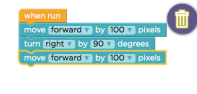
Screen Shot 2015-02-20 at 15.24.40Screen Shot 2015-02-20 at 15.25.02Screen Shot 2015-02-20 at 15.25.11

There are aScreen Shot 2015-02-20 at 15.24.52 couple of other nice features as you work through – firstly, when you run your code your animated Elsa walks through what you’ve asked her to do, flinging snowflakes as she goes and this can be quite irritating after a while, so you can speed up the code using the hare and tortoise icon below the ‘run’ button.

Screen Shot 2015-02-20 at 15.25.16Secondly, after you’ve completed the level you can click on the ‘Show code’ button and it will show you what your code looks like in JavaScript, which is a feature that really appeals to the older children I teach.

After lesson 3, we’re introduced to Paola, who works for microsoft and explains loops to us ready for Anna’s task, which requires loops and a bit more thinking to figure out.
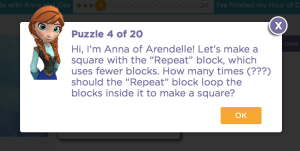
Screen Shot 2015-02-20 at 15.39.02

Anna’s first task simply involves putting our first loop in, but the second involves reading the instructions carefully! The code is pre-written and all the user needs to do is change a couple of variables.
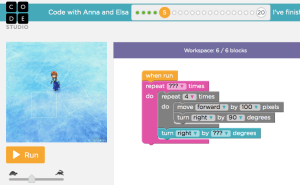
Screen Shot 2015-02-20 at 15.39.39

Now we’re starting to get a bit trickier with our activities, but we’re still presented with the code first and asked to make alterations to the variables:

Screen Shot 2015-02-20 at 15.41.32Screen Shot 2015-02-20 at 15.41.46

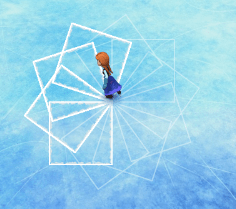
Puzzle 8, unfortunately, expects our children to know how many Screen Shot 2015-02-20 at 15.44.58degrees are in a full turn and then use that to calculate that Elsa needs to turn 36 degrees each time to make a star pattern that has ten points, but I guess with trial and error the children could get it since there are only a few options on the drop down menu.

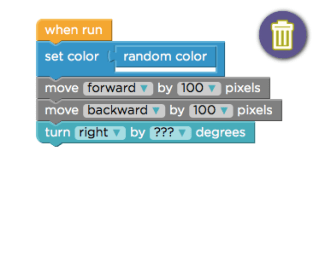
Then we’re asked to do it 90 times, but with a subtle hint as to what angle we need (the options are 4, 45, 60, 90, 180 and 360, so it is kind of obvious).

Screen Shot 2015-02-20 at 15.47.15 Screen Shot 2015-02-20 at 15.47.24

We’re also rather casually introduced to a change colour variable here, which is lovely, but a bit unexpected!
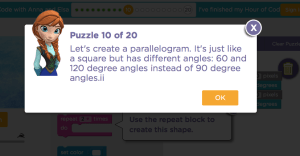
Screen Shot 2015-02-20 at 15.52.30I’m not going to lie, the maths teacher in me got a little overexcited when it saw the next activity was all about drawing parallelograms, until I got really frustrated by drawing rhombuses that had been labelled as paralleograms – I mean seriously, the amount of time I spend explaining that if a parallelogram has 4 sides of the same length then it’s a rhombus – I suppose it could have been worse, they could’ve called it a diamond. But in all seriousness, it’s great that the children are being encourage to think about shapes and angles in this much detail!

Interestingly, for all of the activities after they randomly dropped it in, the set colour block has been in your toolkit and there is a block space for you to drop it in should you desire, but it still hasn’t been explained – I’m assuming this is some kind of bonus for the able kids who will figure out what it does and feel pleased with themselves for self-extending.

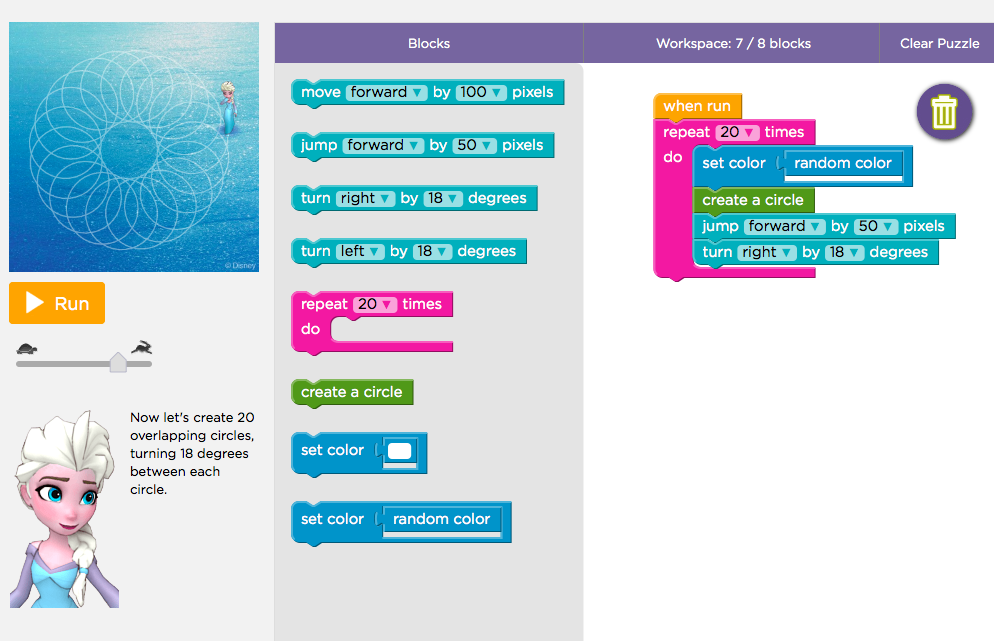
After coding Anna to skate in a circle, we are given another video where Chris, an NBA star and coder uses basketball as a metaphor for functions – I’m not going to lie, it’s a lovely idea, but the concepts of functions are not an easy one to understand – I’m still a bit bewildered even after a year or more of trying! In the video, Jess (CEO of a company I’ve never heard of), shows uScreen Shot 2015-02-20 at 16.02.37s that we can call our earlier code to draw a square ‘square’ and define that as a function so that whenever we call ‘square’ that piece of code is run – this concept is very clearly shown by the diagram embedded in the video, but I still feel like it may be a bit too difficult for a child to understand.

Screen Shot 2015-02-20 at 16.04.37Fortunately, we don’t actually need to understand the concept of a function, we just need to understand that we can now simply drop the ‘create a circle’ function into the code and it does the circle drawing code for us!
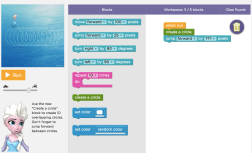
Screen Shot 2015-02-20 at 16.05.10 You’ll notice that the ‘set color’ option is still being snuck into every activity.

The next few activities really needs us to start thinking:Screen Shot 2015-02-20 at 16.08.28Screen Shot 2015-02-20 at 16.11.25
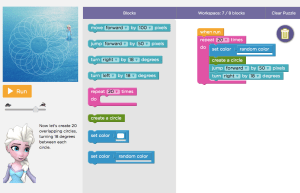
The clues are there for what angles you need, but it’s not as explicit as it was in the beginning. Still, I’m making some pretty pictures, and I’ve become slightly obsessed with putting the random colour block in…
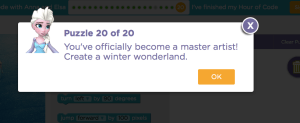
Screen Shot 2015-02-20 at 16.14.29So, finally, I’ve managed to get onto the final task and earn my certificate! The final activity is a freeform drawing page and I just left mine blank and still got a well done. Hooray for me! I even managed to publish my certificate to twitter.
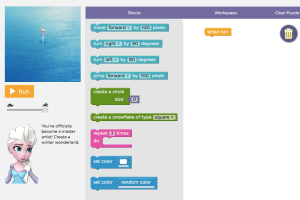
 Screen Shot 2015-02-20 at 16.14.34  Screen Shot 2015-02-20 at 16.14.41 Screen Shot 2015-02-20 at 16.15.09

So, some conclusions – the Frozen activity at Code.org is a fantastic way to get kids interested in coding, especially girls. It gets tricky, but it’s not impossible with a little patience, especially as all of the tools are there and the drop down menus don’t give you too many options – even with trial and error you’d get it right in the end. I also liked that it gets adults more enthusiastic about code too – I showed this too my Year 3 teacher, who previously just didn’t get the point of coding and we ended up with several members of staff around the table getting invovled and asking questions – including “how is this coding?” which of course meant I had the opportunity to jump in and explain that block based coding teaches algorithmic thinking and just basically doing things in order. Year 3 are going to try this out next term because she enjoyed herself so much, although I am concerned that some of the angle work later on might be a bit too tough for them…

Overall this is a great activity and I can’t wait to try out some of the other resources on the site.
Coding Evening and BETT 2015

This week I decided to do something a little different – I’ve seen lots of people chatting about Raspberry Jams (meetups for Pi lovers), I’ve been to a Code Club meetup which had a lot of volunteers and not a lot of teachers and I’ve been to a CAS hub for teachers in Hammersmith. The three things combined inspired me to organise my own event – I didn’t want the formatlity of a CAS hub, but I wanted teachers to feel welcome and have the opportunity to relax after a long day at school. I also wanted to encourage some people from the Raspberry Pi and Code Club communities to come along and share what they’re doing (I also hoped to get a few volunteers without schools to come and find a school to volunteer in).

So, after a few emails and phone calls, I found a local pub with a nice function room that was completely free to hire and sent emails out to my local ISI schools, as well as looking up contacts for all the local LEA schools. I then posted on Twitter, the Raspberry Jam page and CAS events page as well as tweeting Code Club (who very kindly emailed out to their local members).

I ended up with about 15-20 people turning up, which I was really pleased about – people felt relaxed enough to order a pint and a burger in their own time while we chatted about what we were doing in school. I had three Raspberry Pis set up so that I could demonstrate things as necessary and I had my other half and my code club volunteer on hand for tech support. Mostly the people were teachers from my local ISI group, but a few people had seen my tweets and the retweets from other groups. I was slightly disappointed not to have any response from the LEA schools, but I’m hoping they’ll come to the next one.

What I enjoyed about the evening is that there was no sales pitch, there was no agenda, it was just a chance to chat. I found that a lot of people had done the same as I had – either bought or planned to buy some Raspberry Pis, but with no idea of what to do with them and that just chatting to the people in the room with experience helped them to feel a bit more confident in trying it out.

The overall conclusion was that people left feeling like they were more confident with trying things out, but could we have another evening in a month or so to catch up and compare – so I’ve already booked the venue again for Friday 13th March!

The next day I went to BETT 2015, but unlike usual, I wasn’t going to hunt around for freebies and find some cool new tech for my school – this year I had volunteered to talk on the Raspberry Pi stand and then been invited to a panel talking about coding in the primary curriculum.

In all honesty, I was so excited about talking that I didn’t look around as much as usual, but I did get a chance to pop to Education City and chat to their staff – we use this resources in the lower school (EYFS and KS1) as it’s a bright colourful website that the children love – in the upper school we just use it for MFL as it’s a useful website for aiding learning. They have a clever marketting ploy for BETT – it’s very simple, if you chat to them about your account, they give you a free mug, so I did and I was actually fairly impressed – they’ve finally made it easy to upload a CSV file of users to have individual accounts, you can easily add in teachers and admin users and the whole admin interface is just a little simpler. They’ve also added in a coding module, which I intend to take a look at in the next few weeks so keep an eye out for a blog!

So, I did a presentation on the Raspberry Pi stand with Tom Sale from Mereside Primary school in Blackpool, talking about how to use the Pi in a primary school, which was great fun – as it was my first time speaking about my teaching in this way, Tom kindly took the lead, but I now feel more confident standing up and having my say. The next thing we both did was a panel with Clive Beale and Carrie-Anne Philbin on the BETT futures stage and, already more confident, I talked for around ten minutes about all the things I’ve been doing with coding since attending Picademy in July (and all of my bad experiences before then) and was able to answer a couple of questions fired from the audience.

So all in all a lovely day at BETT. Now I need to get planning my next coding evening in Twickenham!!

<edit>The March coding evening will be on Friday 13th March – details here: https://www.eventbrite.com/e/twickenham-coding-meetup-part-2-registration-15481779419 See you there! </edit>